
Configuration flow

1

Confirm the Base URL

Confirm the SoMark API Base URL based on your deployment type.
DeploymentBase URL
Official SoMark APIhttps://somark.cn/api/v1
Self-hosted SoMarkAPI Base URL of your self-hosted service
2

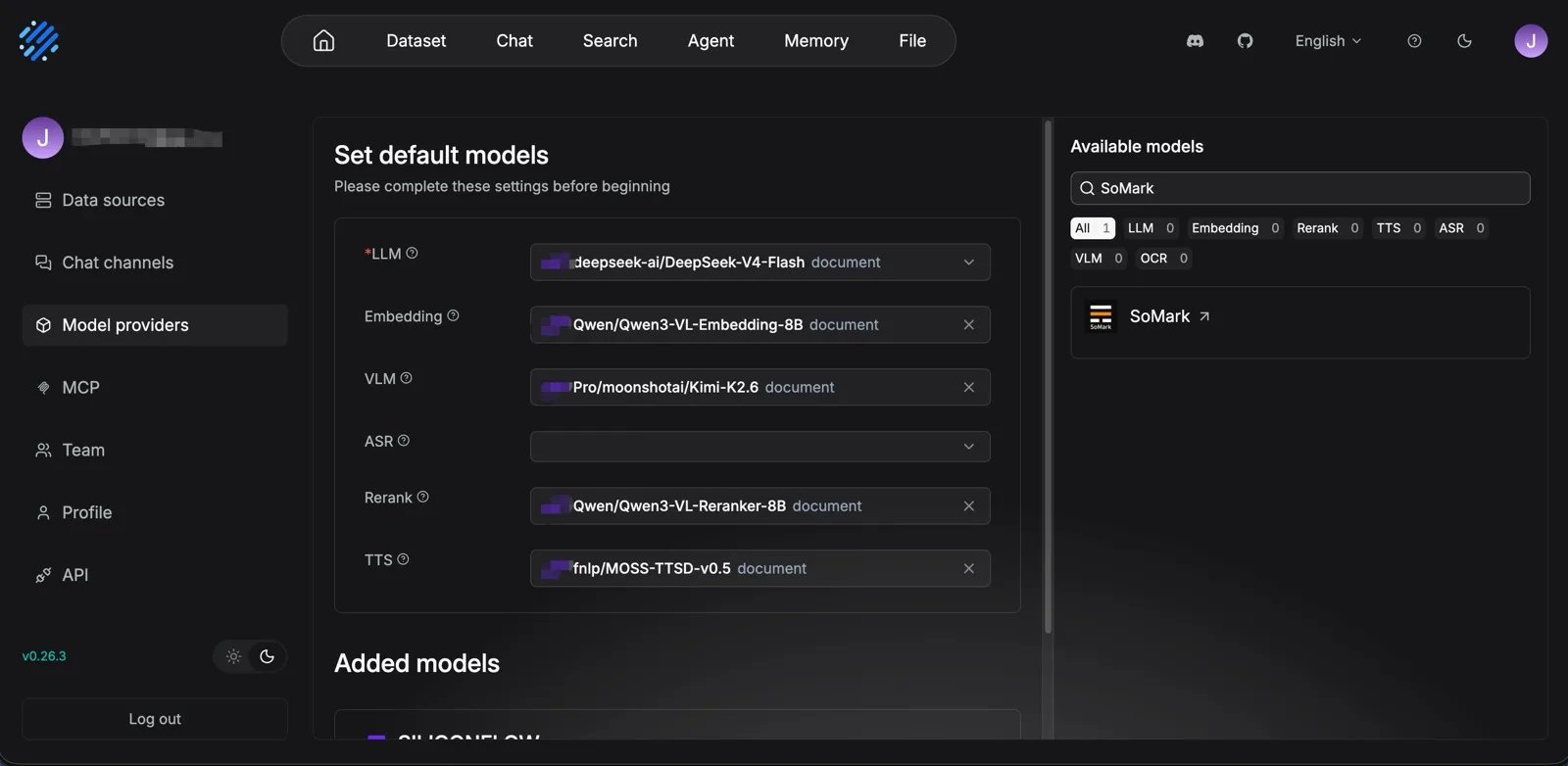
Add the SoMark model provider

In RAGFlow, open user settings, go to the model provider settings page, select SoMark from the model provider list, and add a SoMark OCR model instance.SoMark_model_provider
3

Fill in model settings

Fill in the following settings:
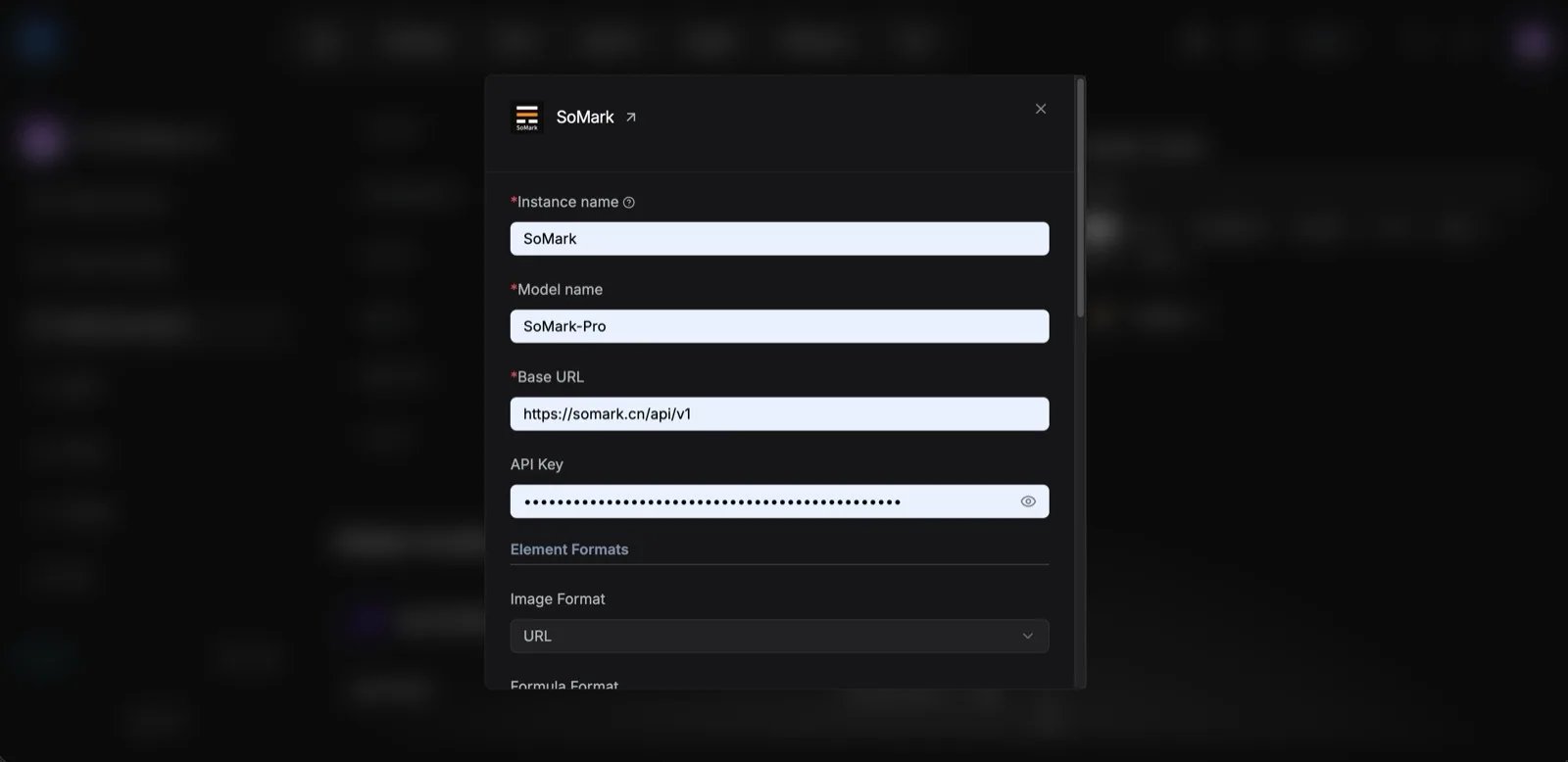
FieldRequiredRecommended valueDescription
Instance nameYessomarkProvider instance name in RAGFlow
Model nameYessomark or a custom nameOCR model name used in parsing settings
Base URLYeshttps://somark.cn/api/v1SoMark API address
API KeyRequired for official APIsk-...SoMark API Key; can be left empty for self-hosted deployments
Fill_in_model_settings
4

Configure element output formats

Configure the return formats for images, formulas, tables, and chemical structures as needed.
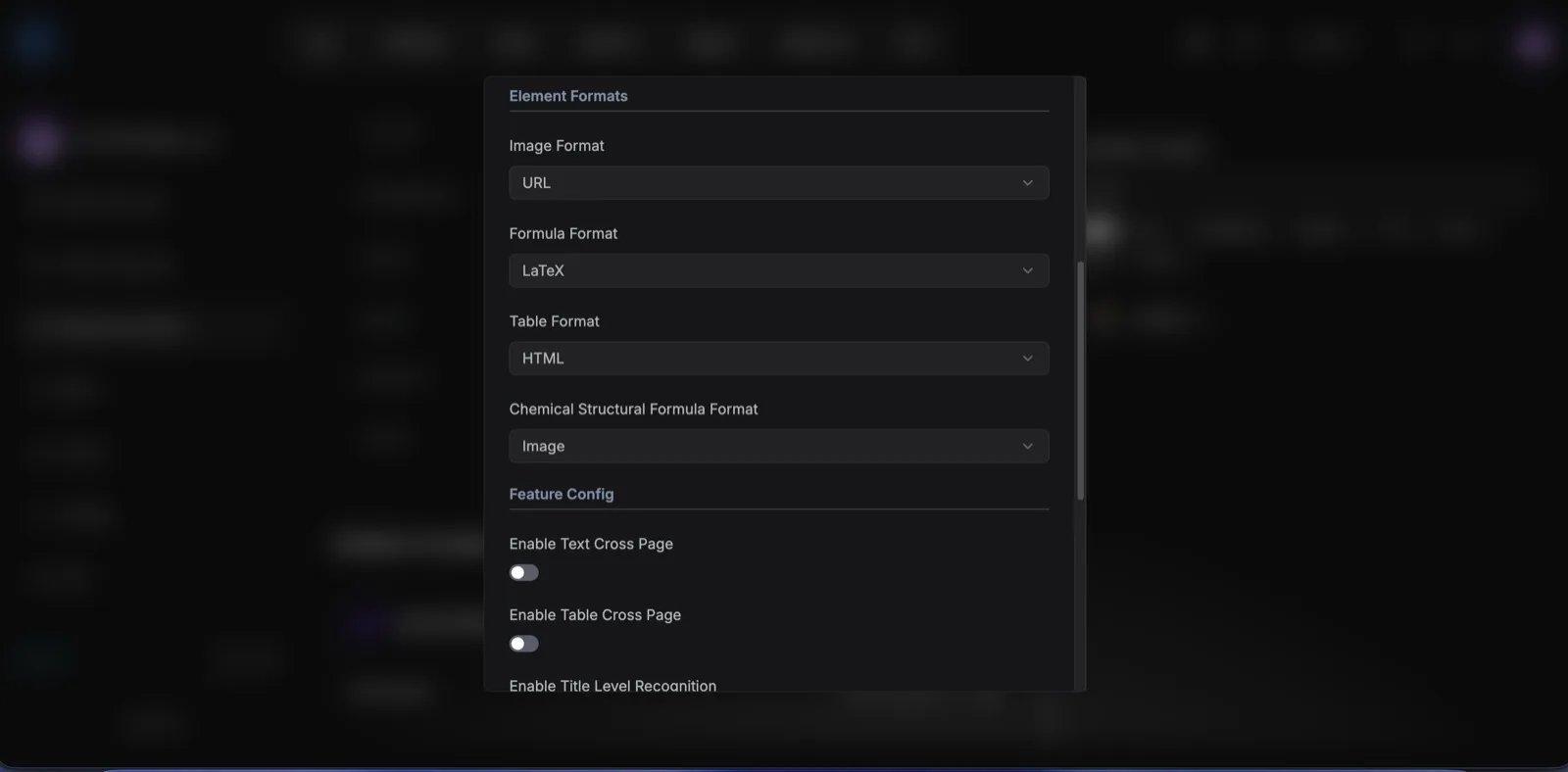
SettingDefaultOptionsDescription
Image formaturlurl, base64, noneHow image elements are returned
Formula formatlatexlatex, mathml, asciiHow formula elements are returned
Table formathtmlhtml, markdown, imageHow table elements are returned
Chemical structure formatimageimageHow chemical structures are returned
Configure_element_output_formats
5

Configure parsing capability switches

Enable or disable parsing capabilities as needed.
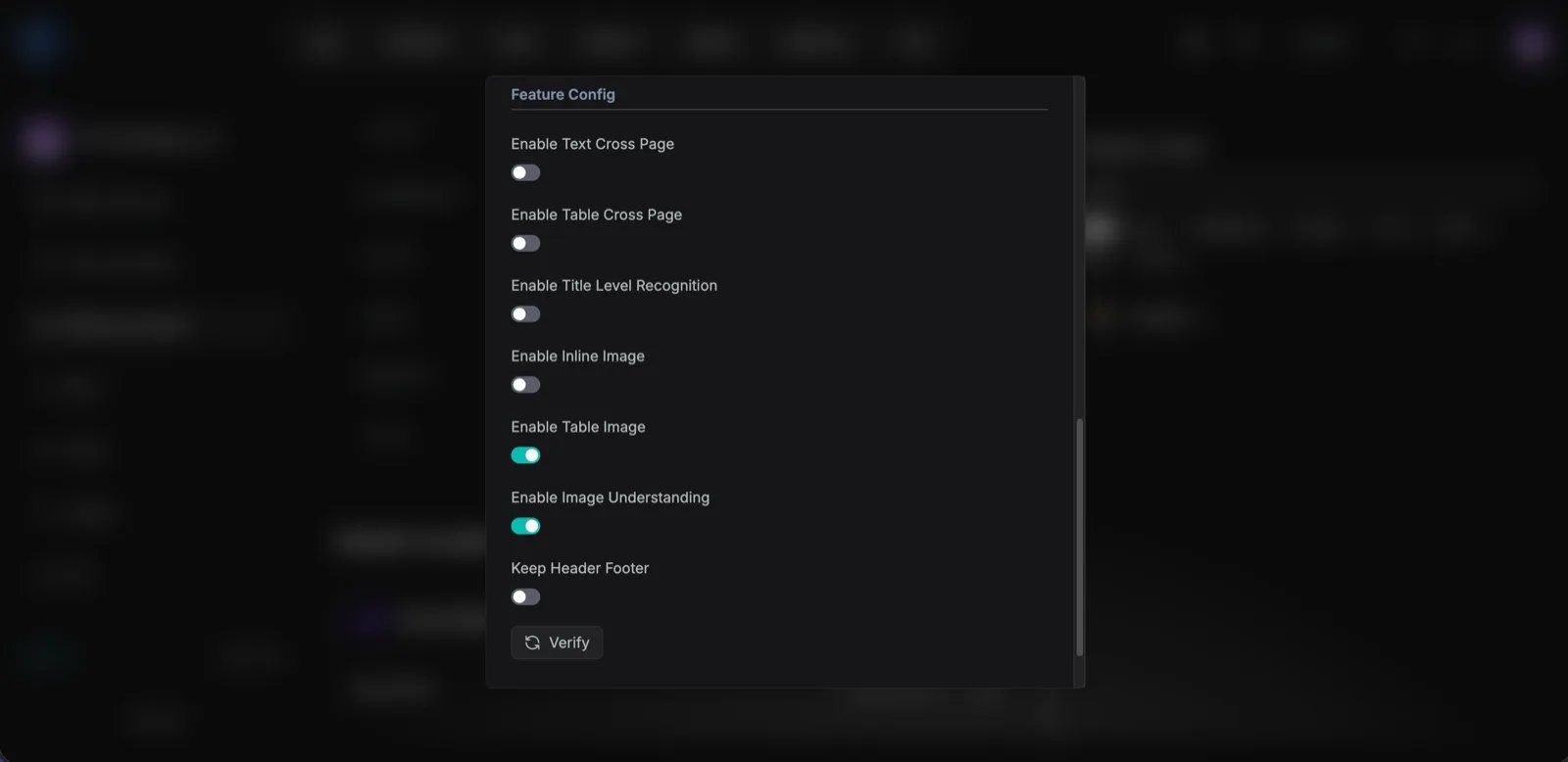
SettingDefaultDescription
Text cross-page mergingOffMerge text that spans pages into continuous paragraphs
Table cross-page mergingOffMerge tables that span pages into complete tables
Title level recognitionOffRecognize heading levels such as H1, H2, and H3
Inline imagesOffReturn images embedded in text paragraphs
Table imagesOnReturn images embedded in table cells
Image understandingOnPerform semantic understanding and structured description for document images
Keep headers and footersOffKeep header and footer content when enabled
Configure_parsing_capability_switches
6

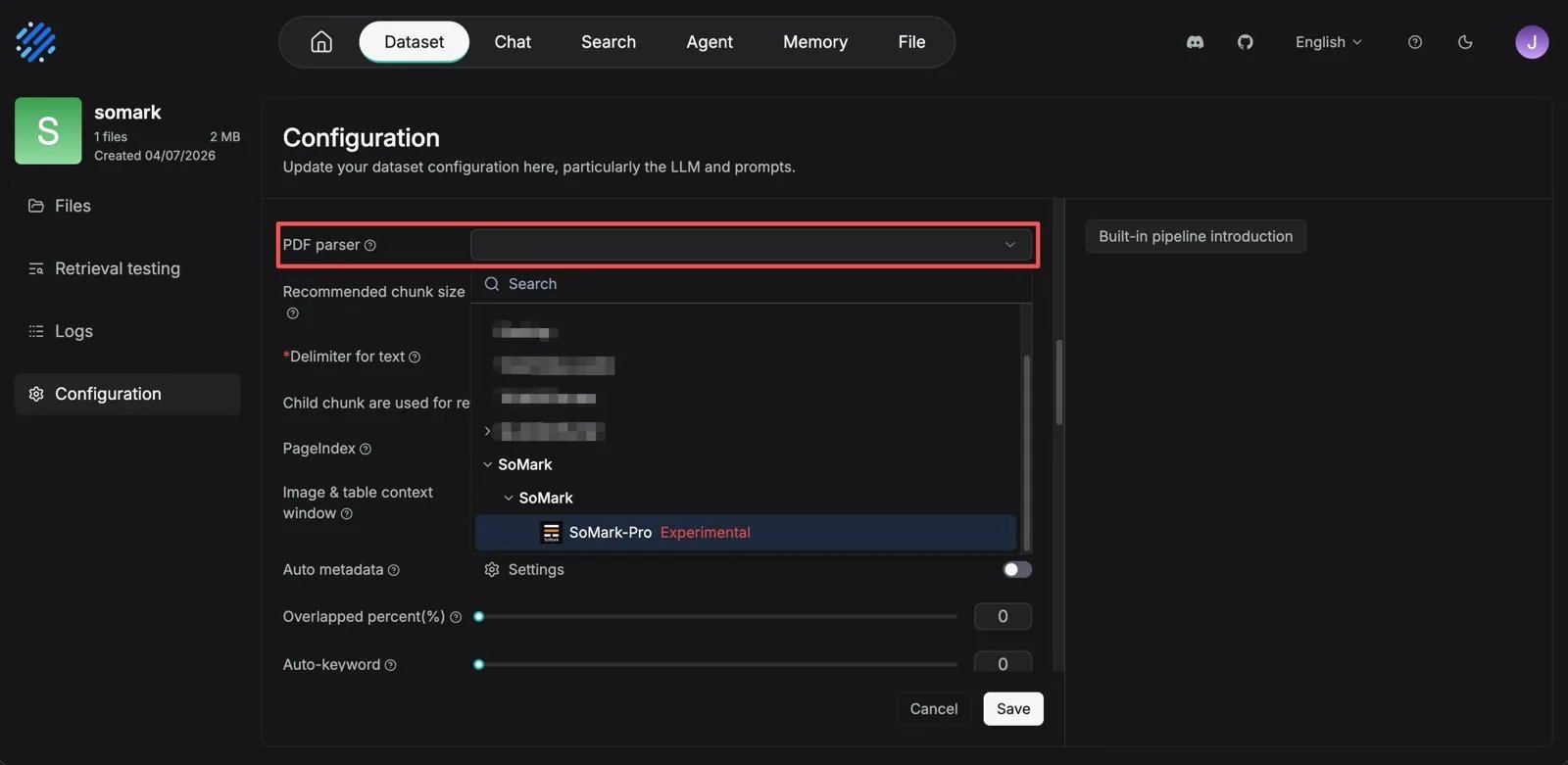
Select SoMark in the knowledge base

Open the RAGFlow knowledge base where you want to import the PDF, upload the PDF file, open parsing settings, and set the PDF parsing method to SoMark.Select_SoMark_in_the_knowledge_base
7

Start parsing

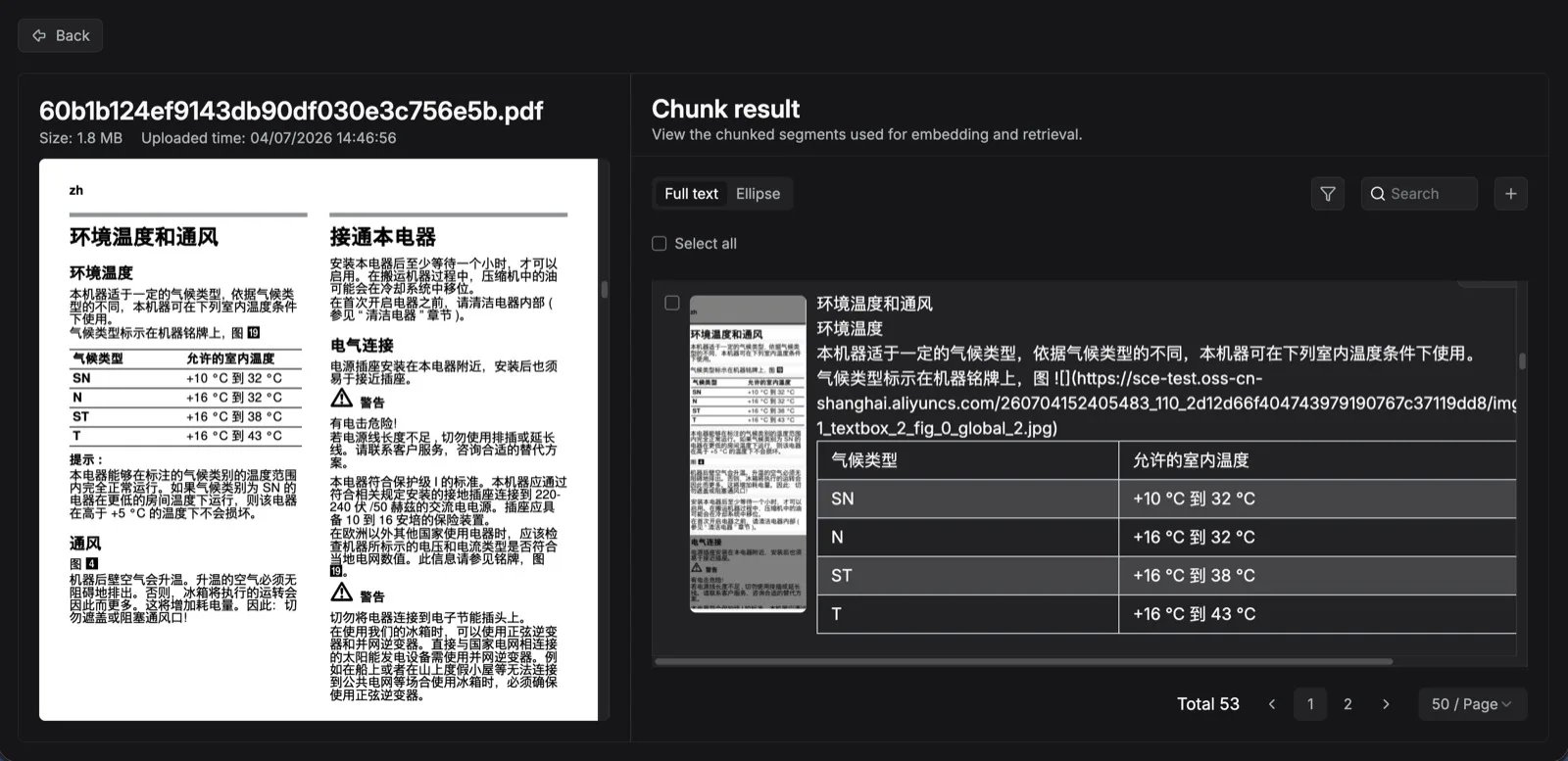
Start the parsing task and wait for RAGFlow to complete the downstream ingestion flow. RAGFlow submits the PDF file to SoMark, polls the async parsing task, retrieves the structured JSON result, converts SoMark blocks to RAGFlow internal structures, and continues chunking, indexing, and vectorization.Start_parsing
Parsing result mapping

Structured blocks returned by SoMark are mapped to RAGFlow internal layout types.
SoMark typeRAGFlow typeDescription
texttextBody text
titletextTitle text
figureimageImage
figure_captiontextImage caption
tabletableTable
table_captiontextTable caption
footnotetextFootnote
sidertextSidebar text
codecodeCode block
choicetextChoice text
referencetextReference text
equationequationEquation
csimageChemical structure
qrcodeimageQR code
stampimageStamp
header / footerDepends on configurationDiscarded by default; kept when keeping headers and footers is enabled
cate / cate_item / blankDiscardedTable of contents noise or blank fields

Notes

  • SoMark is currently mainly used for PDF parsing in RAGFlow.
  • After document parsing succeeds, RAGFlow continues its existing knowledge base chunking, indexing, and vectorization flow.
  • If a knowledge base uses SoMark for parsing, you still need to configure an embedding model normally. Otherwise, the downstream ingestion flow cannot complete.